See what your Mac is talking to. Choose what to block.
Your Mac is having conversations you never agreed to. MiniFirewall shows you recorded connections and lets you create website, app, and address blocks. It never interrupts you to ask a question, because nothing is blocked until you say so.
Browser privacy settings can hide website names and limit website blocks. The Traffic guide explains what to check and the privacy tradeoffs.
MiniFirewall firewall app for Mac macOS 13.0 or later, Apple Silicon and Intel Never asks you a question Your traffic stays on your Mac
Does a Mac already have a firewall?
Yes, but it only works in one direction. The firewall built into macOS blocks connections coming in to your Mac. It cannot stop an app on your Mac from sending data out, which is what almost everyone means when they go looking for a Mac firewall.
Apple's own documentation is clear about this: the firewall in System Settings is there to stop other machines reaching yours. That is worth having, and it is not the problem most people have. The app that quietly reports what you do, the browser extension calling a server you have never heard of, the program that talks to something at three in the morning: all of that is your Mac starting the conversation, and the built-in firewall lets every bit of it through.
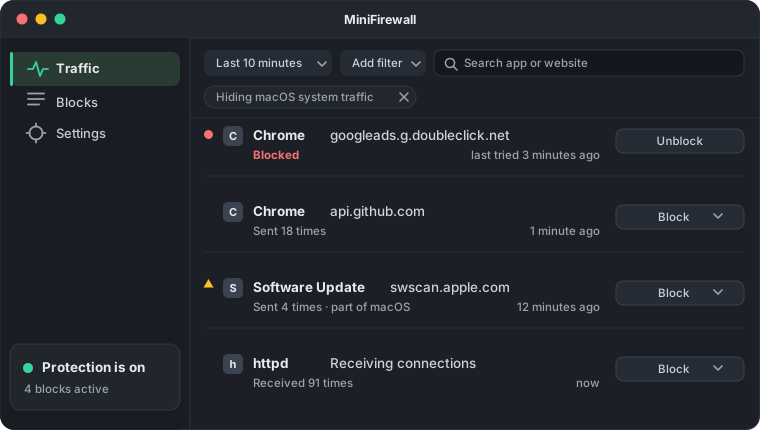
MiniFirewall is the other half. It watches connections your Mac starts, shows you what they are, and lets you stop the ones you do not want.

What does MiniFirewall actually show you?
One readable list of what your Mac is talking to: which app, which website, which direction, and when. Rows are grouped, so an app that contacted the same website four hundred times is one line with a count, not four hundred lines. That grouping is the whole reason the window stays readable.
Names, not numbers
Websites appear as names you recognise, apps as the apps you installed. Nothing asks you to know what an address or a port is.
A warning before you break something
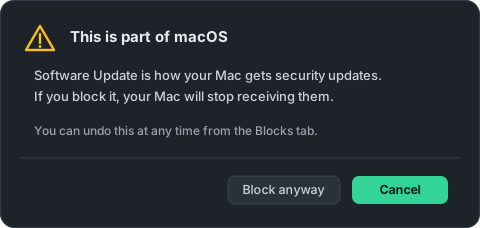
Some traffic is macOS doing its job. Block something your Mac depends on and MiniFirewall tells you what will stop working, in plain words, before you do it.
The list holds still while you read
New rows wait while your pointer is over the list, so the row you are aiming at does not move out from under you. Anything held back is counted above the list.
Filters for finding your own apps
macOS talks constantly. One tap hides system traffic so you can see what your own apps are doing. Blocked rows are never hidden, because that would be a lie.
How do you block something?
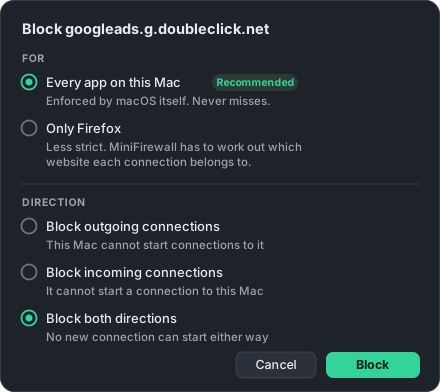
Press Block on any row, and answer one question: should this stop connections going out, coming in, or both. That is the whole interaction. You can also type in a block ahead of time for an app that has not run yet, or for a website you already know you do not want.
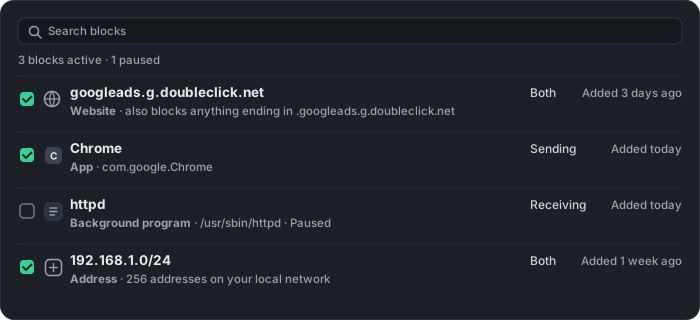
Four kinds of thing can be blocked, and the app says which kind each block is in words rather than leaving you to guess:
- A website
- Including everything under it. Blocking
example.comtells you, before you confirm, that it also coverswww.example.com,mail.example.comand the rest. - An app
- Including an app that has never run yet, so it is stopped the very first time it tries.
- A background program
- The things with no window that still use the network, including servers running on your own Mac.
- An address
- A single address, or a whole range of them.
Why does it never ask you anything?
Because a firewall that asks questions gets switched off. Every prompt-based firewall puts you in a position where you must judge, on the spot, whether a connection you have never heard of is safe. Nobody can do that reliably, so people either click Allow forever or uninstall the app.
MiniFirewall takes the opposite position and holds it consistently. Nothing is blocked unless you added a block. There is no mode that blocks everything by default, no profile system, and no alert when a new app connects for the first time. The traffic list is there when you are curious, and silent when you are not.
The cost of that choice is honest: MiniFirewall will not warn you about something you never thought to look at. It is a tool for people who want to see and decide, not an alarm system that decides for you.
Is this a simple firewall for Mac, or another expert tool?
It is built for people who are not technical. Nothing in it requires knowing what a port, a protocol, or a process is. The words it uses are sending, receiving, website, app, and blocked. If a screen cannot be understood by someone who has never thought about networks, it is treated as a bug.
That has consequences you can check for yourself. Direction is asked as "outgoing connections, incoming connections, or both", in those exact words. Consequences are shown before actions, so blocking a website tells you what else it covers before you confirm. And it deliberately does less than the alternatives: no traffic analysis, no charts of how much data went where, no downloadable block lists, no VPN.
Two things, done properly: show you the traffic, and block what you point at.
How does it compare to Little Snitch, LuLu and Radio Silence?
Every Mac firewall makes you accept one of two trades. Either it interrupts you constantly so it can control individual connections, or it stays quiet by only being able to block whole apps. MiniFirewall is built to avoid both: per website control, and no interruptions.
| App | Asks you to approve connections | Can block one website | Built for |
|---|---|---|---|
| MiniFirewall | Never | Yes | People who want to see what is happening and stop parts of it, without becoming an expert |
| Little Snitch | Yes, on each new connection | Yes | People who want to decide about every connection and are willing to answer for it |
| LuLu | Yes, on each new connection | Yes | Free and open source, aimed at people comfortable with security tools |
| Radio Silence | Never | No, whole apps only | People who want an app silenced completely and nothing more |
| The macOS firewall | Never | No, and it cannot block sending at all | Stopping other machines from reaching yours |
The full breakdown, including what each one costs you in attention rather than money, is in the Mac firewall comparison. If you arrived here after giving up on prompts, the Little Snitch alternative guide is the more direct read.
What does MiniFirewall never do?
- Collect your data
- Never. What your Mac connects to is recorded on your Mac only, deleted after 7 days, and erasable at any moment.
- Sell or share your data
- Never, in any form, to anyone. There is nothing collected that could be sold.
- Show ads
- None, anywhere, ever.
- Ask you to make an account
- There is no MiniFirewall account and no MiniFirewall server.
- Use anyone else's code
- The app is built entirely from Apple's own frameworks. No third party code of any kind is inside it.
- Interrupt you
- No approval prompts, no alerts about new apps, no notifications.
The one thing it does talk to is Apple, through Apple's own software: the App Store delivers updates, and Apple confirms your access is active. We would rather say that plainly than claim the app speaks to nobody. The full detail is on the privacy page.
Frequently asked questions
Does a Mac already have a firewall?
Yes, but it only works in one direction. The firewall built into macOS blocks connections coming in to your Mac. It cannot stop an app on your Mac from sending data out, which is what most people mean when they ask for a Mac firewall. MiniFirewall handles the other direction.
How do I see what apps are connecting to the internet on my Mac?
Open MiniFirewall and look at the Traffic list. Recorded connections are grouped by app and destination. Some browser privacy settings hide website names, so a connection may show an address or shared name instead. Traffic records connections, not every page visit.
How do I stop an app from connecting to the internet on a Mac?
Find the app in the Traffic list and press Block, or add it ahead of time from the Blocks tab. You can block the app entirely, or block just the one website it keeps contacting and leave the rest of the app working normally.
Will MiniFirewall interrupt me with pop-up questions?
Never. This is the main thing that makes it different from other Mac firewalls. Nothing is blocked until you add a block yourself, so there is no reason for it to ask you anything. It has no approval prompts, no alerts about new apps, and no decisions waiting for you.
Is MiniFirewall a good alternative to Little Snitch?
If you found Little Snitch too demanding, yes. Little Snitch asks you to approve or deny connections as they happen, which is powerful and also why many people give up on it in a day. MiniFirewall shows you the same traffic without asking you anything, and you block what you want when you want.
Can I block one website without blocking the whole app?
You can create a website block for every app or for one app only. Matching depends on the website name being identifiable. Encrypted lookups, hidden connection names, and existing connections can limit website blocking. The Traffic guide explains optional browser settings and their privacy tradeoffs.
Why does the list show curl, or a program I never installed?
Many apps do not make every connection themselves. They run small tools that come with macOS, such as curl, to fetch things, and each tool is its own program, so a firewall sees the tool. MiniFirewall names the app that started it on the row, as "started by", and a block on that app also covers the tools it runs.
Can I block an app from the internet but keep it working with my printer or TV?
Yes. When you block an app, choose Internet only under Where. The app keeps finding and using devices on your Wi-Fi, and its connections to the internet are blocked. The reverse works too: Your local network only keeps the app online and stops it seeing or being seen by devices on your network.
Does MiniFirewall slow my Mac down?
No. Blocks by website and address are handed to macOS, which enforces them in the system itself without running our code at all. The rest is designed to make no decision that touches the disk, so the part of the work that happens per connection stays in memory and finishes immediately.
What happens if MiniFirewall itself goes wrong?
It allows the connection. Every unexpected condition inside MiniFirewall is built to let traffic through rather than block it, because a firewall that wrongly blocks leaves you offline with no way to search for help. A bug should cost you a block, never your internet.
Does MiniFirewall work on Apple Silicon and Intel Macs?
Yes. MiniFirewall runs on macOS 13.0 or later, on both Apple Silicon and Intel Macs. It is distributed on the Mac App Store, so installing and updating it works the same way as any other app you got there.
Does MiniFirewall collect any of my data?
No. What your Mac connects to is recorded on your Mac only, deleted automatically after 7 days, and erasable at any moment. There is no MiniFirewall account and no MiniFirewall server. Nothing is collected, nothing is sold, and there are no ads.
Sources
- Apple, Block connections to your Mac with a firewall, on what the built-in macOS firewall covers
- Apple, Network Extension framework, the system service MiniFirewall uses to see and block connections
Find out what your Mac has been saying
MiniFirewall is a Mac app (macOS 13.0 or later, Apple Silicon and Intel) that shows recorded network connections and lets you create website, app, and address blocks. Some privacy settings hide website names and limit website blocking. It never interrupts you with connection-approval questions: nothing is blocked until you say so. Your traffic stays on your Mac. Nothing is collected, nothing is sold, and there are no ads.
Get MiniFirewall on the Mac App Store