Help and setup guide
Last updated 2026-10-16. Covers macOS 13.0 or later.
Setting up MiniFirewall takes about a minute, and one step of it looks alarming. macOS will tell you that a system extension was blocked. That is normal, it happens with every Mac firewall, and approving it is the whole of the setup. This page shows you exactly which buttons to press.
MiniFirewall firewall app for Mac macOS 13.0 or later Setup time about a minute Restart needed no
How do you set up MiniFirewall?
- Install MiniFirewall from the Mac App Store. The App Store puts MiniFirewall in your Applications folder. It has to live there: macOS refuses to let a firewall start from anywhere else. If you moved it, move it back and open it again.
- Open MiniFirewall and read the two short screens. The first explains what the app does. The second warns you that macOS is about to say a system extension was blocked, which is normal and happens with every Mac firewall.
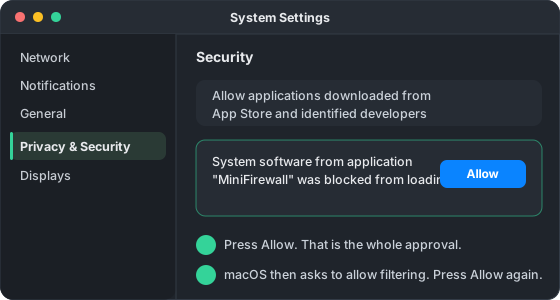
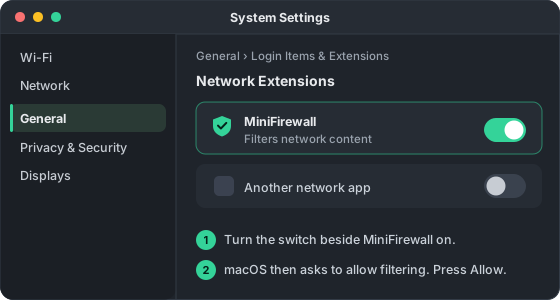
- Approve MiniFirewall in System Settings. macOS blocks the part that does the actual work until you approve it by hand. On macOS 13 and 14 this is in Privacy and Security. On macOS 15 and later it is in General, Login Items and Extensions, Network Extensions. MiniFirewall opens the right place for you.
- Allow filtering when macOS asks a second time. After the approval, macOS asks separately whether MiniFirewall may filter network content. Press Allow. This second question catches people out because it looks like the same one they just answered.
- Wait for the shield to turn green. MiniFirewall checks that protection is genuinely working before it says so. When the menu bar shield is filled and green, and the app says Protection is on, setup is finished.
Where is the approval on my version of macOS?
Apple has moved it twice. On macOS 13 and 14 it is in Privacy and Security. On macOS 15 it is in General, then Login Items and Extensions, then Network Extensions. On macOS 26 it is one level deeper, under Extensions and By Category. MiniFirewall opens the correct pane for your version, so you rarely have to find it yourself.
| Your macOS | Where the approval lives | What you press |
|---|---|---|
| macOS 13 and 14 | Privacy & Security, then the Security section at the bottom | Allow, next to the message about MiniFirewall |
| macOS 15 | General, then Login Items & Extensions, then Network Extensions | The switch beside MiniFirewall |
| macOS 26 and later | General, then Login Items & Extensions, then Extensions, then By Category, then Network Extensions | The switch beside MiniFirewall |
Why does macOS ask twice?
Because they are two different permissions. The first allows MiniFirewall's system extension to load at all. The second, which appears afterwards as a plain alert, allows it to filter network content. Both are needed. Answering only the first is the single most common reason setup appears to stall.
If you dismissed the second question by accident, open MiniFirewall again and it will offer to ask once more. Nothing is broken and nothing needs reinstalling.
How do I know it is really working?
The shield in your menu bar is filled and green, and MiniFirewall says "Protection is on". That wording is deliberate: the app waits until the working part actually answers it before claiming to protect you, so a green shield means verified, not assumed.
You can confirm it from the other side too. Open System Settings, Network, Filters. Green there means the working part is connected. Yellow means the setting is switched on with nothing attached to it, which is the state to report if you ever see it.
How do I block my first website?
- Find it in the Traffic list. Search by the app's name or the website's name. If you already know the website and it has not appeared yet, skip to the Blocks tab and use the plus button instead.
- Press Block. The small arrow beside it offers the choice between blocking that website for every app, or for that one app only.
- Choose who it applies to. "Every app on this Mac" is recommended and is the default, because macOS enforces it and it never misses.
- Choose the direction. Outgoing connections, incoming connections, or both. If you are not sure, both is the default and is almost always what you want.
- Confirm. Before it saves, MiniFirewall tells you what else the block covers, such as every address ending in the name you typed.
What does "Watch my traffic" actually control?
Recording, and nothing else. With it off, MiniFirewall stops keeping a list of what connected, but every block you have made keeps working exactly as before. It is a privacy and tidiness switch, never a protection switch.
This is worth being clear about because other tools use a similar-sounding setting to mean "stop protecting". MiniFirewall never withholds protection to save effort, and the app is in the path the whole time regardless of this switch.
Why does the Traffic list show curl, or a program I never installed?
Because an app ran it. Many apps fetch things through small tools that come with
macOS, such as curl, and each tool is its own program, so the list
shows the tool. The row names the app that started it, as "started by", and
blocking that app also covers the tools it runs.
If a row names no starter, MiniFirewall could not tell who ran the tool, usually because the parent program had already quit, and the row is left honest rather than guessed. Why curl is connecting to the internet on your Mac explains what to make of it.
How do I let an app use my printer but not the internet?
Block the app, choose Block outgoing connections, and under Where choose Internet only. The app keeps finding and using devices on your network, printers and TVs included, and everything it tries on the internet is blocked. Your local network only is the reverse.
Two things to know. If a VPN is on, the dialog shows an orange line naming it, because addresses behind a VPN can count as your network. And a block on an app covers the programs it starts, not a separate program it only talks to. Block an app's internet access but keep it on your local network has the detail.
Something is blocked and I need it back
Open MiniFirewall, go to Blocks, and untick the most recent block. Unticking pauses it rather than deleting it, so you can put it back afterwards. If the app will not open at all, macOS has its own switch: System Settings, Network, Filters, then turn MiniFirewall off.
MiniFirewall is built so that its own mistakes cannot do this to you. Any unexpected condition inside it allows the connection instead of blocking it, on the reasoning that a wrongly allowed connection is a small problem while a wrongly blocked one leaves you offline and unable to search for help. If a block you did not create ever appears, that is a serious bug and we want to hear about it.
How do I remove MiniFirewall?
Use the uninstall option in Settings inside the app. It removes the system extension properly first, then you can delete the app. Dragging the app straight to the Trash can leave the extension registered with macOS, which is harmless but untidy and confusing later.
Setup questions
macOS says a system extension was blocked. Is something wrong?
No, that message is the normal first step. macOS blocks the part of a firewall that inspects connections until you approve it by hand in System Settings. Every Mac firewall causes this message, including Little Snitch and LuLu. Approving it is the whole setup.
Why does MiniFirewall need to be in the Applications folder?
macOS refuses to start a system extension from anywhere else, and the error it gives when the app is elsewhere explains nothing useful. If MiniFirewall is somewhere other than Applications, it offers to move itself when you open it.
It says Protection is on, but nothing appears in the Traffic list.
Check that "Watch my traffic" is turned on in Settings. That switch controls recording only, never blocking, so your blocks keep working with it off. If it is on and the list is still empty, check whether the filter chip hiding macOS system traffic is also hiding everything else.
Something is blocked and I need it back right now.
Open MiniFirewall, go to Blocks, and untick the block. Unticking pauses it without deleting it, so you can turn it back on later. If the app will not open, macOS can switch the whole thing off in System Settings, Network, Filters.
How do I pause protection for a few minutes?
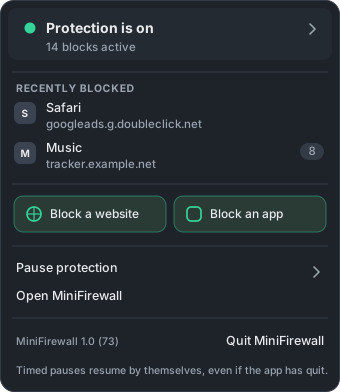
Click the shield in the menu bar and choose Pause protection, then for 15 minutes, for 1 hour, or until you turn it back on. A timed pause ends by itself even if you quit the app, and the shield stays in its paused shape the whole time so you can see the state at a glance.
How do I remove MiniFirewall completely?
Open Settings inside the app and use the uninstall option, which removes the system extension properly before you delete the app. Dragging the app to the Trash on its own can leave the extension registered with macOS.
Still stuck?
Write to us through the contact page, or use Report a problem inside the app, which gathers the technical details for you and lets you see exactly what it would send before anything leaves your Mac.
Get MiniFirewall on the Mac App StoreMiniFirewall is a Mac app (macOS 13.0 or later, Apple Silicon and Intel) that shows recorded network connections and lets you create website, app, and address blocks. Some privacy settings hide website names and limit website blocking. It never interrupts you with connection-approval questions: nothing is blocked until you say so. Your traffic stays on your Mac. Nothing is collected, nothing is sold, and there are no ads.