How to Stop an App Scanning Your Local Network on Mac, and Keep Its Internet
There are two ways to stop an app finding and talking to devices on your Wi-Fi. macOS 15 and later has a per-app Local Network switch in Privacy & Security, which covers ordinary apps. MiniFirewall can block only the local network for any app or background program, on macOS 13 and later, while the app’s internet keeps working.
Why do apps scan my local network at all?
Most of it is discovery. A music app looks for speakers and TVs to hand playback to, a photo app looks for printers, a video app looks for Chromecast-style devices. They send a question to everyone on the network at once, every few seconds while open, and listen for answers. It is noisy and usually harmless.
Some of it is not something you asked for: an app building a list of every device at home, or a tool scanning addresses it has no business with. You cannot tell the two apart from the outside, which is why a list of what each app actually sends is worth having before you block anything. In MiniFirewall’s Traffic tab, Add filter, “Show only local network” shows exactly those rows.
Why does my firewall show 224.0.0.251, ff02::fb and 239.255.255.250?
Those are the addresses of “everyone on this network”. 224.0.0.251 and ff02::fb are Bonjour, how Macs, printers and AirPlay devices find each other. 239.255.255.250 is SSDP, the discovery used by TVs, speakers and many smart devices. A row to one of them means the app asked the whole network a question. Routers do not forward these.
MiniFirewall says so on the row. Expand one and it reads “Sent to everyone on your network to find printers, TVs and other devices (Bonjour). Never leaves your network.” A row like that from an app you trust is the app doing its job. The same row from an app that has no reason to look for devices is the thing this page is about.
What does the macOS Local Network setting do?
Since macOS 15, System Settings, Privacy & Security, Local Network lists apps that have asked to find and communicate with devices on your network, and you can turn each one off. An app that is off cannot discover or reach devices on the Wi-Fi. Its internet is unaffected. For an ordinary app, this is the right first stop.
It has edges, and Apple documents them. The switch covers apps and the helper programs they install for you, not background programs that run as part of the system, so a tool installed by an installer and running as root is not listed. It exists on macOS 15 and later only. And it is a switch, not a window: it does not show you what the app was sending, or whether it is still trying.
How do I block only the local network for an app?
In MiniFirewall, Traffic tab, find a row for the app, press Block, “Block App entirely”. Choose Block both directions, and under Where choose Your local network only. Press Block. The app can no longer find or be found by devices on your network, and the dialog’s caption says what stays: “Spotify can still reach the internet.”
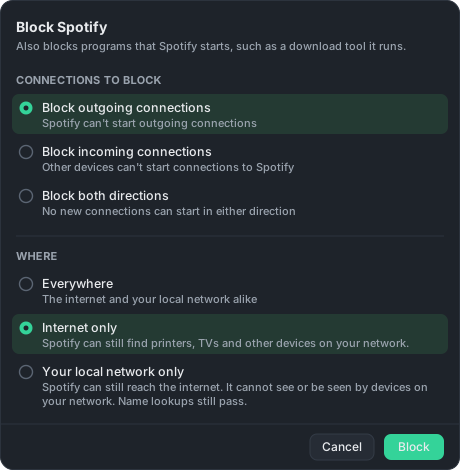
Both directions matters here. Discovery goes two ways: the app asks the network, and devices answer it or come looking for it. Blocking outgoing alone would stop the questions and still let a speaker reach the app. Both directions closes both.
Name lookups to your router still pass, on purpose. Your router is on your network, and it is also how the app finds websites, so a local-network block that cut it would take the internet away through a side door while the caption promised the opposite. The caption says “Name lookups still pass” so there is no surprise.
What is different from the macOS switch?
MiniFirewall works on macOS 13 and later, covers background programs and tools as well as apps, shows you what the app sends before and after, and can do the reverse: keep an app on the network and off the internet. How to block an app’s internet access on Mac but keep it on your local network is that case.
It is also narrower than the macOS switch in one way. A block on an app also covers the programs that app starts, but it does not reach a program the app only talks to. If an app finds devices by asking another program on your Mac to do it, that other program makes the connection. The dialog says so under both limited choices.
Where the two overlap, use whichever you can see. The macOS switch is simpler; the block tells you what happened. Both can be on at once without conflict.
Sources
- Apple, Control access to your local network on Mac, the per-app Local Network setting
- Apple, What’s new for enterprise in macOS Sequoia, on which programs the Local Network permission covers
- Apple, TCP and UDP ports used by Apple software products, on the ports Bonjour and SSDP use