How to Block an App's Internet Access on Mac but Keep It on Your Local Network
You can block an app from the internet and still let it use the printer, the TV and everything else on your Wi-Fi. In MiniFirewall, block the app, choose Block outgoing connections, and under Where choose Internet only. The app keeps finding and using devices on your network; its update checks and everything else online fail.
When would I want this?
Whenever an app needs your network but not the world. A printer utility that should print and nothing more. A media app that casts to the TV and also phones home every few minutes. An inventory or label app on a shop Mac that talks to the receipt printer and the barcode scanner and should not be calling out mid-shift.
If you sell on Shopify, that last one is familiar. The Mac at the counter talks to a receipt printer and a label printer on the shop’s Wi-Fi, and the tools around it have update checks, analytics and “improvement programs” of their own. You want the printing to work and the rest to stop, and an ordinary app block takes both away at once. The split is the point.
How do I block only the internet for an app?
Open MiniFirewall, Traffic tab, find any row for the app, press Block, then “Block App entirely”. In the dialog choose Block outgoing connections, and under Where choose Internet only. Press Block. If the app has not run yet, use the Blocks tab instead: the plus button, App, choose it, Continue, the same two choices.
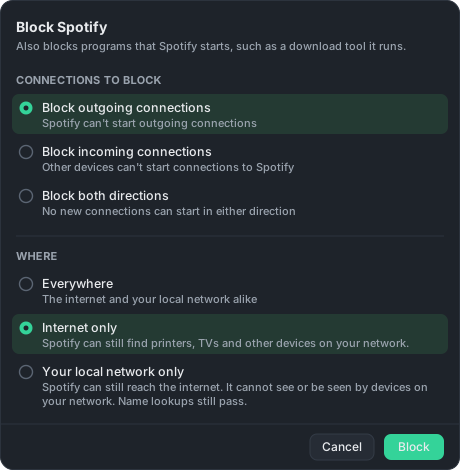
The two choices are independent, which is what makes this work. Direction is about who starts a connection: the app, or a device out there. Where is about where the other end is: the internet, or your own network. Your case is “the app starts it” plus “the internet”. Everything the app does on the Wi-Fi is untouched, and the dialog says so: “Spotify can still find printers, TVs and other devices on your network.”
What counts as my local network?
Your network is every address the Wi-Fi hands out to devices around you, plus the addresses apps use to find those devices. In plain terms, that is 10.x, 172.16 to 172.31, 192.168.x, 169.254.x, their IPv6 equivalents, and the “everyone on this network” groups that printer and TV discovery relies on. Everything else is the internet.
One carve-out, on purpose. When an app looks up a website name, it usually asks your router, and your router is on your network. Under Internet only that lookup still passes, and then the connection to the website is blocked. The app learns the address and cannot use it, which is the right order. Under the opposite choice, Your local network only, lookups pass as well, so an app kept off your network does not lose the internet through a side door.
What will I see afterwards?
In the Traffic list the app’s rows to the internet turn red and read “Blocked N times”, while its rows to devices on your network stay green, each with a small house glyph before the address. The Blocks tab shows the block as “Outgoing” with “Internet only” under it.
If the app runs a helper tool to fetch things, such as curl, the block covers that tool too, in the same places. Does blocking an app on Mac also block the programs it runs? explains how.
When will this not hold?
Two cases, and the dialog tells you about both. If a VPN or tunnel is on, addresses on the far side of it can count as your network (a work VPN often lives in 10.x), and your own devices reached through Tailscale count as the internet. An orange line names the tunnel while it is connected.
Turn the VPN off, or expect the split to follow the addresses rather than your intent.
And if the app sends its internet traffic through another program, a VPN app or a proxy on this Mac or your network, that other program makes the connection, and a block on this app never sees it. That is true of every per-app firewall, not a quirk of this one. The dialog says so under both limited choices.
Can I do the reverse, keep the internet and block my network?
Yes, with the third choice, Your local network only. That is the one for an app that keeps looking for speakers and TVs you do not want it to find, or that you would rather not have scanning the Wi-Fi at all. How to stop an app scanning your local network on Mac covers it.
Sources
- Apple, Control access to your local network on Mac, on the per-app Local Network setting macOS provides
- Apple, TCP and UDP ports used by Apple software products, on the ports Bonjour, AirPlay and printing use